Wizard
Info
Wizard is a living project, and is constantly being improved and new features are being added. Consequently, this documentation might be slightly out of sync.
The Wizard is OWID's ETL admin tool. It is an interactive streamlit-based web app that provides a user-friendly interface to manage our ETL catalog.
It was initially developed to ease the creating of ETL steps by means of templating, but it has evolved to more than that and now provides a wide range of functionalities in the ETL workflow.
Run it locally with the following command:
and then visit localhost:8053.
Run it from admin and staging servers
- Wizard is available from any server that bakes OWID's site (e.g. staging servers), including live admin page. Just look for "Wizard" in the navigation menu.
- The production version runs at etl.owid.io/wizard (needs Tailscale).
- Note that some of the functionalities might not be enabled in a remote setting. For instance, creating steps is currently only available when running locally.
The different pages in Wizard
Wizard is structured into different sections, each of them grouping different pages (or apps) depending on what they do.
In the following sections we try to give a brief overview of each of the sections and the pages they contain.
Get latest details from the app
The best way to know what Wizard can do is to run it and check the available options. The app is constantly being updated and new features are being added.
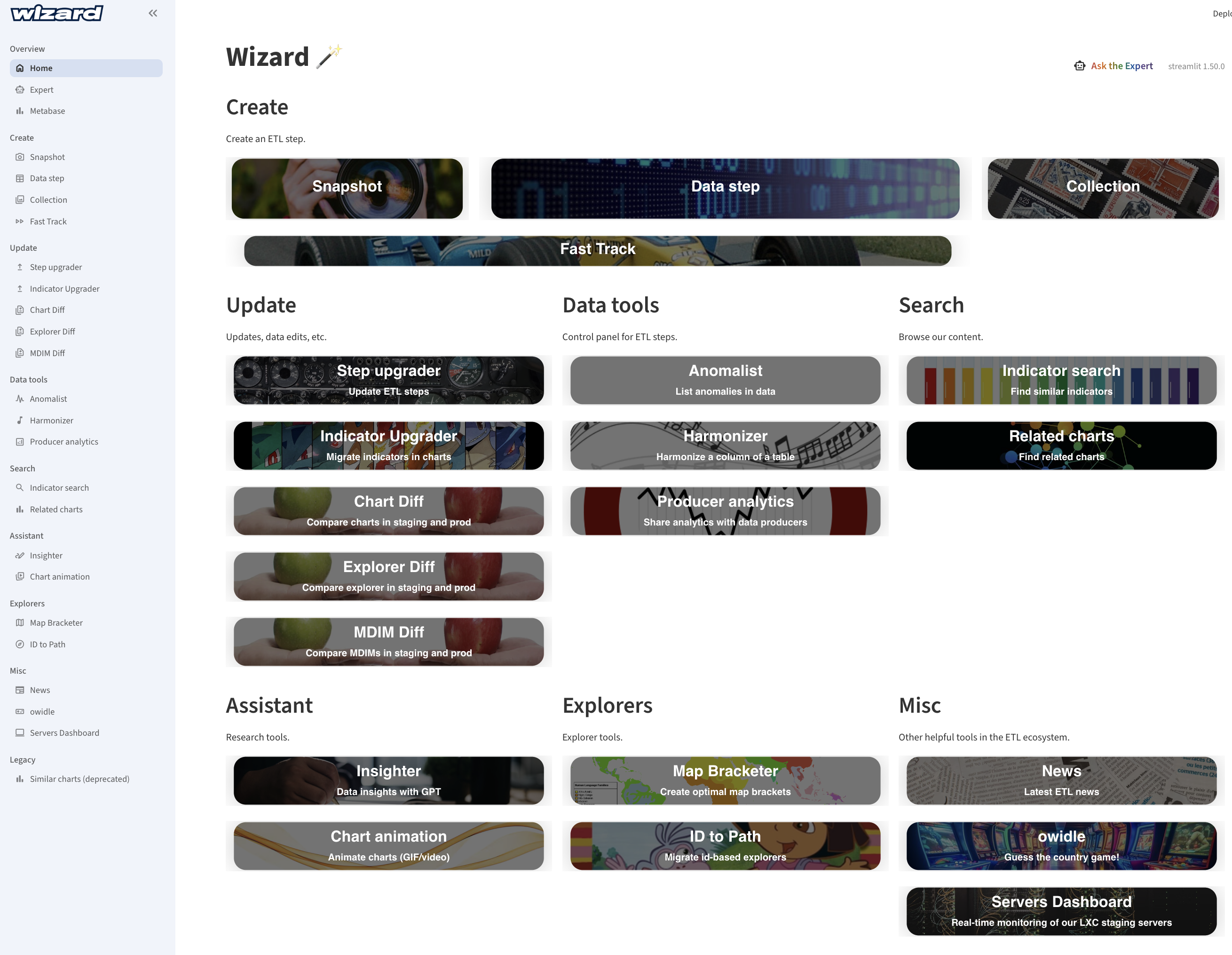
Create ETL steps
Create new ETL steps from Wizard, including Snapshot, Data (Meadow, Garden, Grapher) and also Collection steps. Additionally, Fast-Track steps can also be created using the Wizard.
In each step creation, a form is presented to the user so that they can fill in the necessary metadata fields. Based on the input, new files (e.g. python scripts, metadata YAML files, etc.) are created and modifications to existing ones (e.g. the DAG) are done.
After submitting each of the forms, a short guideline is shown so that the user knows what they need to do next.
-
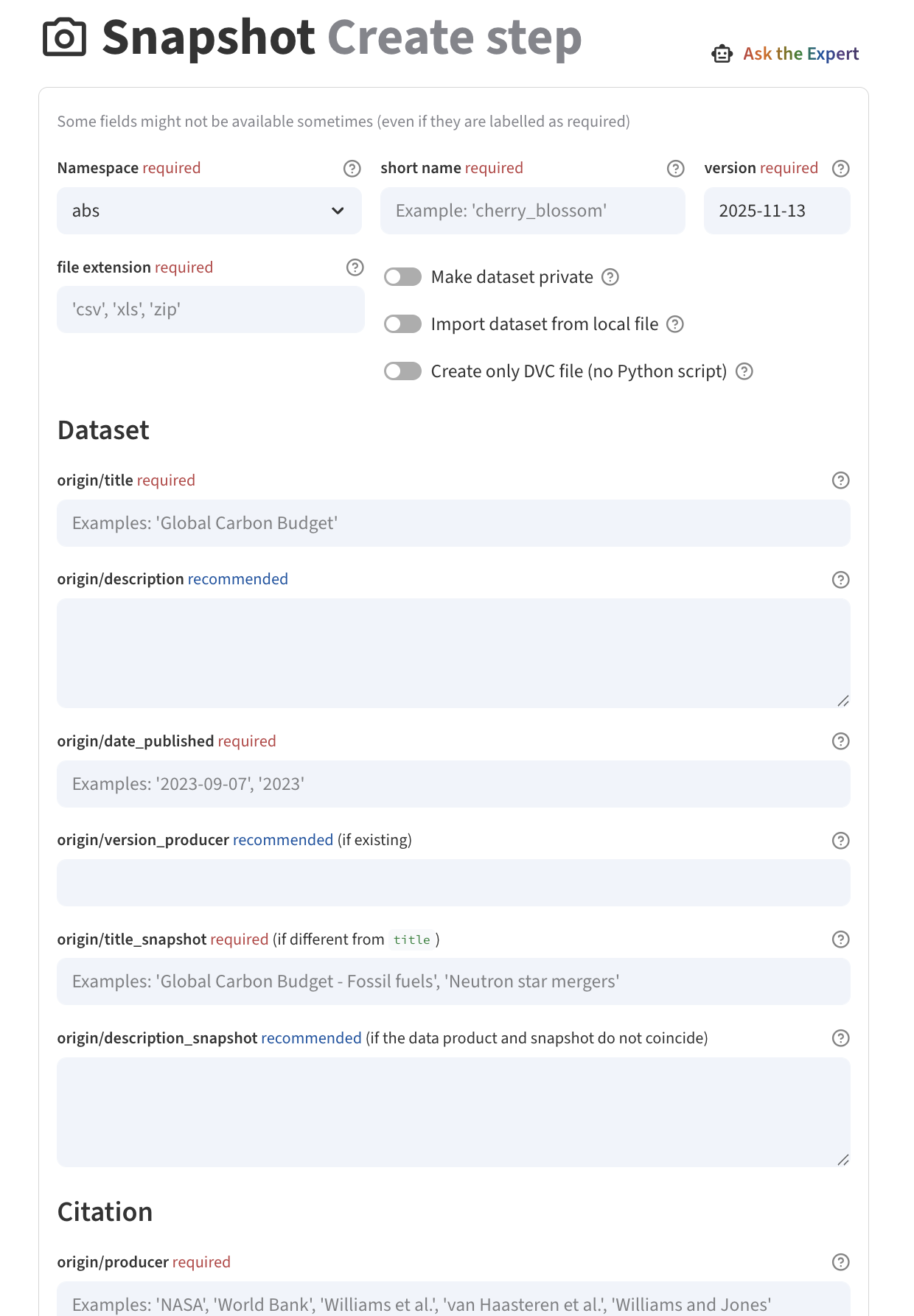
Snapshot step creation
-
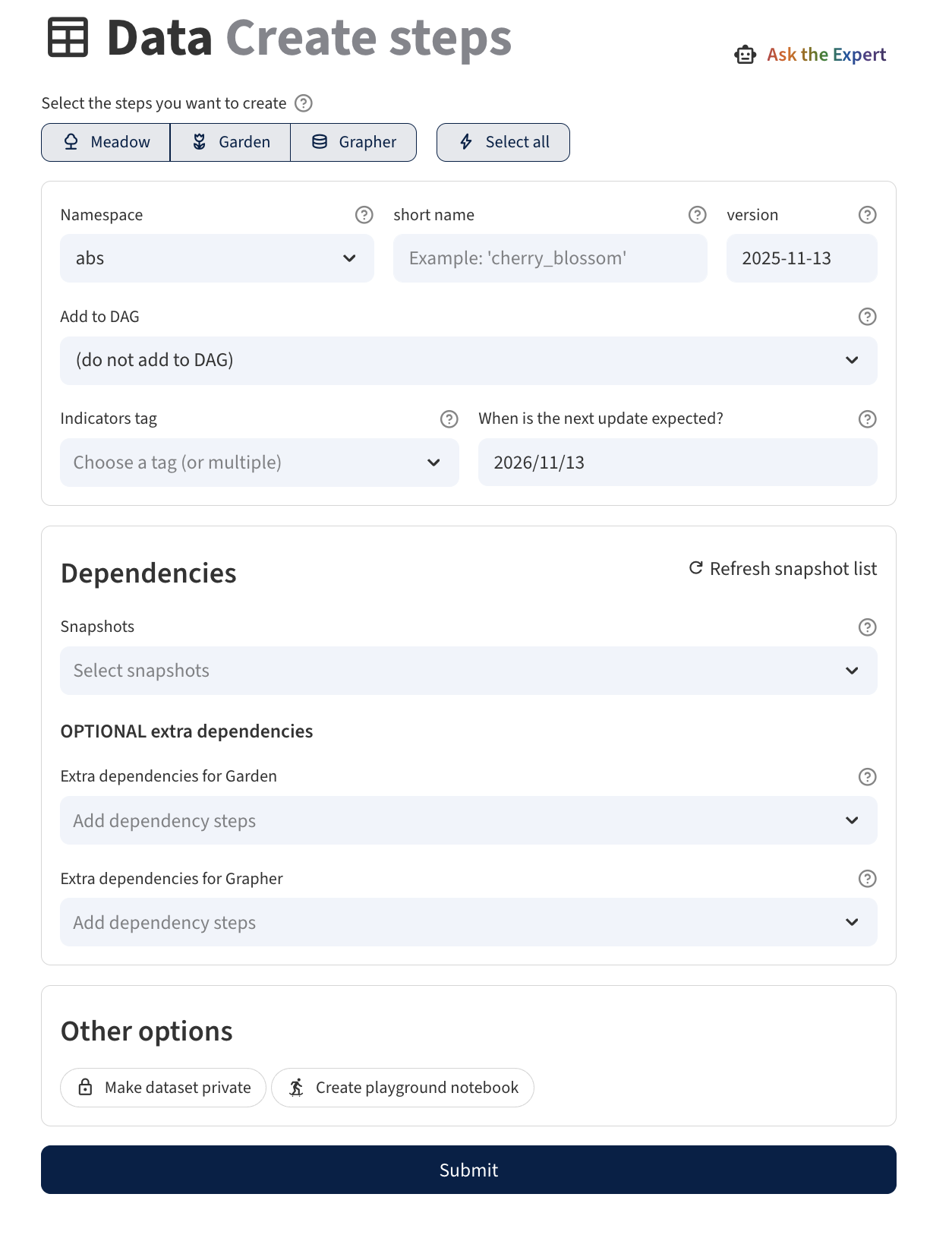
Data step creation
-
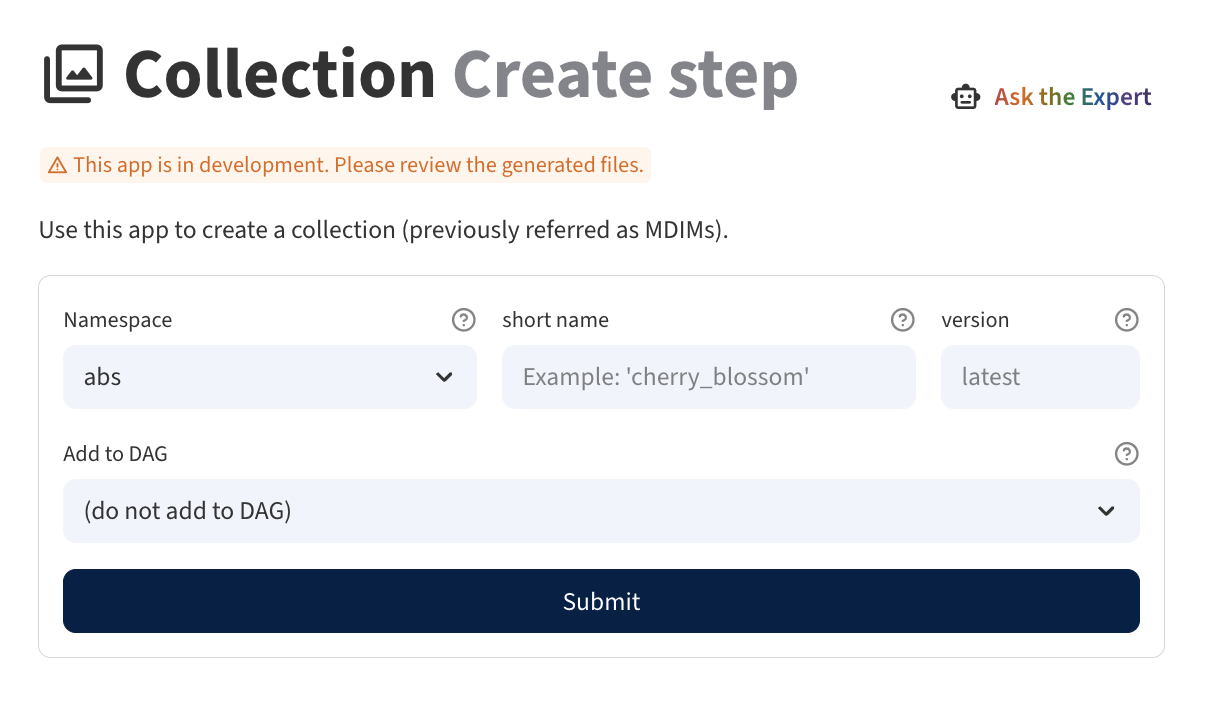
Collection step creation
Expert
GPT-based assistant to help resolve doubts. Doubts can include anything ETL-related (metadata structure, environment setup, etc.). This documentation is fed to the Expert, so it should be able to answer most of the questions concerning this documentation.
Additionally, Expert can also help out create Datasette queries!

Update tools
Pages to help us improve our charts (e.g. keeping them up to date). The current pages are:
- Step upgrader: Monitor datasets and update them quickly!
- Indicator Upgrader: Upgrade old indicators with their corresponding new versions to keep the charts up to date. You will need to (mostly) manually map "old indicators" to "new indicators". Then, the tool will update all affected charts with the new indicators. These modified charts can be reviewed with Chart diff.
- Chart diff: Shows all charts in your environment (e.g. staging server) that have been modified compared to the production. This is useful to review the changes before they are pushed to the production. Additionally, we provide MDIM and Explorer diff (experimental).
Learn more about updating charts section
Data tools
- Anomalist: Presents all anomalies detected in a given selected dataset. By default, it attempts to load anomalies from the newly added datasets (and, if applicable, it also compares the new indicators with the old counterparts).
- Harmonizer: Harmonize the entity names of a table.
Assistant
- Chart animation: Animate a chart over time and export it as a GIF.
Search (experimental)
- Indicator search: Browse indicators.
- Related charts: Given a chart, find related charts based on semantic similarity.
Misc
- Servers dashboard: Track the status of all our servers.
Adding new functionalities to Wizard
The code for the Wizard lives in apps/wizard. It is a streamlit app, so you can also run it with streamlit run apps/wizard/app.py.
We are trying to keep Wizard as modular as possible, so that it is easy to add new pages to it.
We encourage everyone to experiment with tools from which the team can benefit. Make sure to discuss your ideas with the rest of the team, so that you can make a good use of your time.
To add a new page, follow these steps:
- Create a new python script, and place it under
apps/wizard/app_pages. This script should be a streamlit python script, and should contain the code to render the page. - Add an entry in the config file
apps/wizard/config/config.ymldescribing your new page. You should first decide in which section you should add your page to or create a new one. You will find more details on how to add your page in the config file itself.